Hermes Engravograph IM-3 / GM-3
Back
to:
Engraving Gateway
Engraving Equipment
The newest addition to the family of
Engravographs, Models TM-3/GM-3, will give you vast opportunities to enter and
succeed in many fields of engraving.
This instruction booklet applies to Model IM-3 (equipped for
rotary engraving, which is used on plastics, metals, and other materials where a
routed-out or deep cut is desired), and Model GM-3 (equipped for diamond-drag
engraving, a process used on jewelry, trophy plates, precious metals, and metal
cups and bowls, to give the engraving the appearance of hand engraving). It is
easy to equip your machine for both types of engraving--just consult the
accessories catalog for the necessary parts.
This instruction manual will guide you through the detailed
operations of your machine. Simply remember that whether you are using rotating
or diamond equipment, the engraving process consists of the following basic
steps:
1. Insert brass master copy type into copy holding slides.
2. Position and lock item to be eng raved into the
work-holding vise.
3. Adjust the size of the finished engraving by setting the
ratios on the pantograph.
4. Trace through the master letters, guiding with the stylus
in the right hand, while depressing the engraving tool to the item with the left
hand.
GETTING STARTED
Engraving is that simple . If you have
any questions about operating your machine, call Shor tech support.
How to Mount Motor Assembly to Machine
Set the machine on a level surface with ample room behind to
allow back-and-forth movement of the pantograph. If you ordered the machine with
a motor, be sure the machine is placed near a grounded 110-volt AC outlet. To
mount the motor (standard on Model IM-3): (See figure at right)
1. Position the motor on the mounting plate located at the
end of the motor bracket. Use the two screws and lock washers (provided in the
bag with the motor pulley) to secure the motor in place.
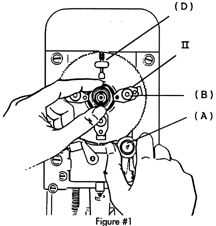
2. Install the motor power cord as shown in figure 1 and
secure it with the gray cover, place and tighten the six screws.
3.
Mount the motor bracket assembly on the machine base. Remove the alien screw
from the base of the motor bracket. Place the motor bracket on the base
inserting the positioning pin in its location and tighten the alien screw.
4. Install the motor pulley on the motor shaft and tighten
the set screw with the key provided. When positioning the pulley, the set screw
must face the flat position of the motor shaft. Mount the rotating spindle on
the spindle link of the pantograph, locking it into position with the lever
screw and lever, as shown at left. If you have a GM-3 model, simply install the
diamond assembly.
A. WORKHOLDING VISE:
The work holding vise clamps the item
to be engraved. The work holding vise on the TM-3/GM-3 can move the engraving
area vertically, horizontally, and the item up and down. It can also be turned
around, to any angle from its home position, as determined by the protractor
located on the machine base.
HOW TO USE THE
WORK HOLDING VISE:
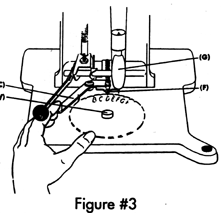
(See figure below) To open and close:
Turn Crank Handle "A".
To move vertically (forward-backward): Loosen Lock-Knob "D"
and slide work holder. When position is reached, retighten Knob"D".
To move horizontally: Loosen Knob "B", and slide work holder
to the right or left. Retighten Knob "B".
To move up & down: Loosen Lock-Knob "E". Unlock alien screw
on protractor index ring. Turn Knob "F" of the Wire Jack. Tighten alien screw on
protractor index ring and lock knob "E".
To turn work holder around: Loosen Lock-Knob "E" until the
workholder swivels freely. Turn work holder around to the graduation setting
desired using protractor index. Tighten Lock-Knob "E" to lock work holder in
position.
B. THE PANTOGRAPH
(See figure at below right) This is the most important
part of your engraving machine. It is the mechanism that transfers lettering or
designs from the master copy type to the item being engraved. By adjusting the
settings on the pantograph you can produce up to 25 different sizes of finished
engraving, from a single master template.
The numbers on your pantograph scales, also known as the ratio settings,
range from 2 to 7. That means that the largest finished engraving pattern that
you can produce from a given master will be one-half the size of the original
brass master. Similarly, the smallest finished engraving size you can produce
will be one-seventh the size of the original brass master character.
The size of the finished engraving will always be smaller
than the size of the brass master. Scales "A" and "B" control how much smaller
the finished engraving will be. Scales "A" and "B" must always be set on
precisely the same value or the engraving will be uneven. Scale "C" can be set
on any value, but when set on the same value as "A" and "B", it can precisely
center the engraving on a concentric object. (See figure above right)
When no pressure is applied, the pantograph is automatically
pulled up by a tension spring located under the machine base. The spring tension
can be adjusted to your own preference. To adjust the tension, pull the knob
located on the front of the machine base, underneath the copy table and screw IN
to increase the tension or OUT to decrease the tension.
C. HOW TO CHOOSE A GOOD
RATIO SETTING
The best way to explain how to select a good ratio setting is
to work with an example. Assume that you are using a style of master copy type
in which the typesize is 5/8 of an inch. You are engraving a name badge, and
have decided that you want a finished letter-height of 1/8 of an inch. To find
the setting that will give you this result, divide the typesize of the master by
the desired height of the finished letter. That is, 5/8 divided by 1/8 equals 5.
Thus, you will need to set the ratio scales "A" and "B" on 5. (See figure
above right).
The accompanying Ratio Chart (See figure 5) can help
you speed your choice of a ratio setting. The most common type sizes are shown
in the left-hand column.
The
horizontal numbers indicate the various ratio settings. By matching both down
and across the chart you will reach a desired finished engraved letter height.
The height of the finished lettering is not the only value
you need to consider. The pantograph reduces the width of the engraving by the
same amount it reduces the height. In the example given above, suppose that you
have assembled the Brass Master Copy Type lettering for the message you wish to
engrave and it measures 10" across. The item you are engraving is a name badge
of 3" width. Will the engraving fit on the badge? To find out, divide the length
of the line of type by the ratio: 10" -. 5 = 2. Thus, the width of the finished
engraving will be 2 inches, small enough to fit on a name badge with room to
spare on each side of the lettering as margins, to give the name badge an
appealing look In actual practice, however, you probably will not bother with
this simple calculation Instead, you will simply insert and center the copy into
the Copy holding slide, as will be described further on. Then, by placing the
tracing stylus in the extreme right and left portions of the copy, you will be
able to visually determine how close the engraving tool comes to the edge of the
engraving material.
If the width of the engraving does not fit, you have three
basic options:
2. Switch to a lower ratio.
3. Change typestyle to a more condensed
style, i.e. one that fits more letters into a given line-width.
NOTE: If you are engraving more
than one line on one item, make sure in advance that the longest line of type
will fit in the engraving area.
D.
HOW TO SET PANTOGRAPH RATIOS

For
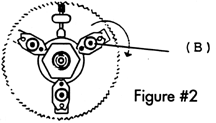
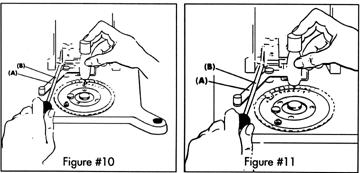
Scale "A", loosen the lever screw on the cutter spindle (See figure left)
or diamond assembly and align the center mark on the cutting instrument with the
desired ratio setting on the scale. Then, re-tighten the lever screw. This
operation is the same for both diamond spindle and/or rotating spindle.
For Scale "B", loosen the lever screw across from the scale
and slide the pantograph bars until the hairline mark aligns with the desired
ratio. Then, re-tighten the lever screw.
A IDIOM: If Scales "A " and "B" are off their marks by even a
fraction of an inch, the engraved line will slant. The setting of the ratios is
a precise and important operation.
For Scale "C", loosen locking knob and push work holder
either to the same ratio setting as Scales "A" and "B" or until the spindle is
located over the desired engraving area.
The Engraving
Spindle
A. DESCRIPTION
This
is the part of the machine where the engraving
actually takes place. There are two interchangeable spindles that can be used
with Models IM-3 or GM-3. The diamond assembly (See figure at left),
standard on Model GM-3, is used on metal items only. The rotating spindle
standard on Model IM-3 (See figure below
left), can be used for motorized engraving on all types of material where a
deep or wide cut is desired, utilizing carbide or high-speed steel cutters. The
depth of cut is changed by changing the bottom micrometer setting applied onto
the pantograph; the width of cut is varied with the width of the tip-size of the
cutter selected. Both types of spindles are attached to the pantograph by means
of a lever screw and washer. When changing from one type of spindle to the
other, the same lever screw and washer can be used. When attaching either
spindle, make sure it is flush against the pantograph casting. Even more
important, do not tighten the lever screw until you are sure it is entering the
spindle casting straight-on. Otherwise, you could strip the threads on the
spindle housing. Both types of spindles are operated by hand pressure applied
onto the pantograph. With a little practice, using the material supplied with
the machine, you will quickly get the sense of how much pressure to apply for an
even, attractive engraving. You can vary the depth of a line somewhat by
increasing or decreasing the pressure, when using the diamond spindle; but be
careful to use a light touch with thin, flexible or hollow-engraving items, such
as gold charms. The diamond insert, located at the bottom of the shaft of the
diamond spindle, can be removed for replacement using an Allen wrench . A
diamond graver for rotating spindle is also available. To use the graver, remove
the motor belt and retaining nut from the spindle, and engrave without using the
motor.
CAUTION: Prolonged use of a
diamond graver can damage the ball-bearings of your rotating spindle.
For more than occasional use, purchase a diamond spindle. The
rotating spindle can be used with a wide range of cutters to perform a wide
variety of engraving jobs: Cutting through the top layer of a plastic material
to let the contrasting color show through. This is by far the most common
engraving job. Engraving in depth in single-color plastics, metals, or other
materials, often to permit filling with paint or some other coloring agent.
Reverse engraving on clear acrylic and 2-flex. In this technique, letters are
cut deeply in reverse on clear material. This gives the engraving an attractive,
three-dimensional effect when viewed through the material. Burnishing on brass
or aluminum. This process is not deep cutting. It is often used on coated brass
to produce engraving that can be darkened with oxidizing agents. (Gravoxide).
Cutting your own brass master templates. Producing stencils. Cutters are
inserted into the spindle from the top. The cutter heads have left-handed
threads, so they must be screwed into the spindle pulley counter-clockwise. If
you are having trouble removing the cutter from the spindle, make sure that you
are turning it clockwise. Make this point clear when training new operators on
your machine. Many a spindle has been damaged by turning the cutter in the wrong
direction.
B.
HOW TO SET CUTTER DEPTH
The rotating spindle has a micrometer for controlling the The
cutter penetrates the engraving material. You must adjust the vertical position
of the cutter so that when the micrometer is set on zero, the tip of the cutter
is flush with the bottom of the depth-nose which is held in place by the
retaining nut. Then, if you advance the micrometer setting to 8, for example,
the cutter will penetrate .008", or 8/1000's of an inch into the material.
1. Select a depth-nose with a hole wide enough to accommodate
the cutter you plan to use. Insert it into the retaining nut, and screw the
retaining nut onto the micrometer. Make sure the depth-nose is seated flush in
the retaining nut. Set micrometer on (0) zero.
2. Insert cutter through top of spindle pulley. 
3. Clamp a piece of flat engraving material into the work
holder.
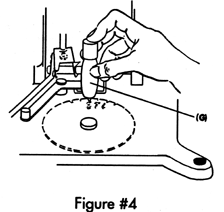
4. Remove the copy holding slide from the copy table On the
copy table, position the leveling tool provided with the machine. (See figure
at right)
5. Loosen locking knob "E" and protractor index ring
screw; raise or lower the workholder so that the surface of the engraving
material will be flush with the bottom portion of the leveling tool. When this
operation is completed, tighten locking knob "E".
6.
Loosen the set-screw on the cutter head so that the cutter shaft slides freely.
To loosen the set screw on the cutter head, use the cutter head wrench (Part No.
31-210-00) supplied with the machine.
7. Lower the pantograph until the depth-nose rests on the
surface of the engraving material.
8. Holding the pantograph in this position, press the top of
the cutter shaft to make sure that cutter tip is flush with the tip of the
depth-nose and the surface of the material.
9. Continue holding the pantograph in this lowered position,
and re-tighten the cutter head set-screw with the cutter head wrench.
10. Loosen the knurled screw on the micrometer indicator
assembly located at the bottom portion of the cutter spindle and advance the
micrometer to the desired depth-setting and tighten the knurled screw.
11. Before turning on the motor, rotate the spindle pulley by
hand to make sure the spindle turns freely. If it does not, the cutter may be
rubbing against the inside of the depth-nose. If that is the case, you will have
to switch to a wider depth-nose and begin again. The cutter must NEVER touch the
depth-nose during engraving, as it will destroy the cutter and nose.
THE COPY TABLE AND COPY HOLDING SLIDES
This is the part of the machine that holds the master copy
type or design template in place. Type comes in four basic sizes for
corresponding copy slide varieties: 5/8", 1-1/4", 2-3/4"double-grooved slide,
and 4�". You can also purchase an adjustable copy slide for oversized
masters.
C. CLAMPING COPY SLIDES TO COPY TABLE
Simply loosen the two knurled screws located on bottom of the slide, slip the
slide onto the copy table and retighten the knurled screws. Another easy way to
line up a copy slide is to bring its top edge flush with the top edge of the
copy table. Even so, always verify that the graduation on the right and left
scales are the same.
NOTE: When using a
double-grooved slide (1-1/4" and 2-3/4"), the engraving spindle will be located
exactly in the center of the work holding vise when:
A.
Scales "A", "B" and "C" are set at the same ratio,
B. Slide is set flush with the copy table.
C. Workholding vise scales are all set to zero. Most standard
copy slides come with a scale for centering the type. When you first attach a
copy slide to the copy table, you will need to center the scale with respect to
the workholder. Do the following:
1. Adjust the workholder's left/right scale on "0" (zero).
2. Set the pantograph on any ratio. (Scales "A" and "B"). We
suggest ratio of 4.
3. Insert a pair of flat holding jigs onto the workholder.
4. Use either the diamond spindle or the rotating spindle
with a cutter inserted. Place the tracing stylus on the "0" mark of the
centering scale. With the diamond graver of cutter, locate the center hole of
the holding jigs.
6. Slide the scale left or right, as needed, by loosening the
screws clamping the copy slide To the copy table. Tighten the screws of the
slide when the "0" mark of the scale aligns with the tracing stylus.
HINT: Before centering the scale, tap the "O" mark lightly
with a small nail. This indentation will help you to keep the tracing stylus on
the "O" mark during the above operation.)
How to Engrave
A. THE
ENGRAVING SEQUENCE
For diamond engraving, you are all set to engrave. However,
if you require lowering the entire diamond shaft, loosen the set screws in the
housing, lower the shaft and re-tighten set screws.
IMPORTANT: Straighten graving
requires that the cutter contact the engraving surface at a 90 degree angle.
For rotary engraving, you will need to select the proper
cutter for the material you are engraving. There are two items you will need to
check: the part number and the tip size. The part number corresponds to the
material you are engraving. The tip size indicates the width of the line you are
engraving. The larger the finished engraved letter the wider the tip size, and
vice versa. The accompanying chart shows recommended tip sizes for different
letter heights. It is meant as a general guide, and it only applies to
single-line styles of type. For multiple-line typestyles, a general guideline is
to use a cutter width approximately half or a third of a cutter width you would
have otherwise selected for a single-line type style. (See chart below)
| CHARACTER
HEIGHT |
CUTTER TIP SIZE |
| 1/8" |
.020" |
| 1/4" |
030" |
| 5/16" |
.040" |
| 1/2" |
.060" |
| 3/4" |
.090" |
| 1" |
.125" |
B. AUTOMATIC CENTERING:
If you need to engrave a single line of type on a symmetrical piece of
engraving material (for example, a rectangular brass or plastic nameplate, a
plain identification bracelet, or a brass disk), you can automatically centerthe
engraving on the item. Here is how:
1. In addition to setting the two main pantograph scales on
the same number, set the centering bracket scale "C" at the back of the
pantograph on the identical number.
2. Set the two workholder scales (front/back and side/side)
on "0".
3. Clamp the item in the center of pair of holding jigs. For
flat, rectangular objects, make sure that the right-hand and left-hand sides of
the piece line up with the same numbers on the holding jig scales.
4. If you are using a double-grooved copy slide, align the
top of the slide with the top of the copy table (see paragraph 2C).
5. Compose your type, and insert it into the copy slide. (Be
sure to include spaces between words, and punctuation where appropriate.) Note:
If the punctuation falls at the end of a line, center the text first without the
punctuation; then place the punctuation mark at the end of text and replace end
stop. By doing so you will have an aesthetically pleasing layout.
6. Position the two end stops so that they both align with
the same number on the copy slide scale. Lock the type in place and make sure it
does not jiggle.
7. Check for automatic centering:
A. Centering bracket on same setting as pantograph
scales.
B. Both workholder scales on "0" (zero).
C. Item clamped symmetrically in holding jigs.
D. Double-groove copy slide aligned with top edge of
copy table.
E. Type centered on copy slide.
To avoid undue wear on your cutter, engrave no deeper than
necessary. Recommended cutting depths for standard engraving materials are shown
in table below.
|
MATERIAL |
RECOMMENDED DEPTH |
Gravoply |
010" to .015" |
| Gravoply II |
003" to .005" |
| Gravoflex |
012" |
| Metallex |
003'' to .005" |
| 2-flex |
015" |
| Aluminum |
.003" |
| Brass |
008" (in one or two passes) |
| Phenolic |
005"to.015" (depending on
color) |
C. THE ENGRAVING SEQUENCE
1. Insert the tracing stylus in the groove of the master copy
type.
2. If you are using the rotating spindle, turn the motor
ON.
3. Lower the spindle to the surface of the engraving material
and trace the letter with the stylus
4. Always release the engraving spindle BEFORE moving
on to another letter. Otherwise, you will engrave random marks on the item.
5. When you have finished engraving the line, check to make
sure that the lettering is evenly and cleanly traced. If not, retrace where
necessary. Do not remove the item from the workholder until you are sure that
the engraving is satisfactory. Accurate retracing will be difficult once the
item is moved.
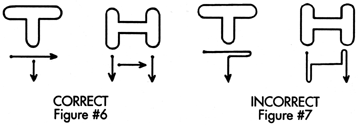
Note: With rotating engraving,
do not begin or end tracing at the corner of the letter. This can sometimes
cause circles to appear at those points, and it?s always better to go through
the letter twice.
D. MULTIPLE COPY SLIDES:
1. Use either 1-1/4" or 5/8'' copyholding slides. Clamp them
onto the copy table, making sure that they are parallel both with the copy table
and with each other. Also, make sure that the space between the slides is even.
2. Select a ratio as if all the lines were just one large
line of type. That is, consider the distance between the top of the top line and
the bottom of the bottom line as your overall letter height. Select a pantograph
ratio on the basis of that overall distance. If the individual letter heights
are too small to be attractive at the selected ratio, move the slides closer
together and start again.
3. As described in the pantograph section, make sure that the
longest line of type will fit onto the engraved item at the selected ratio.
4. Finally, spot-check the centering of the engraving. Place
the tracing stylus at the top of the top line and see where the cutter or
diamond graver will contact the piece. To make this easier, place a piece of
scotch tape on the item to be engraved, and make a light mark with the cutter or
diamond graver. Then, do the same with the bottom of the bottom line. Shift the
forward/back position of the workholder until the distance between the top line
and the top edge of the piece is the same as the distance between the bottom
line and the bottom edge of the piece. Although the engraving should be centered
side-to side automatically (assuming that you have centered the type with the
copy scales, and that the side/side workholder scale is set on "0") you can
spot-check the horizontal centering in the same way.
E.
ONE COPY SLIDE ONLY:
Engraving more than one line with a single copy slide Is
easiest with an odd number of lines. The reason is that you can first engrave
the center line, and then position subsequent lines around the center. In the
first example, let's say you want to engrave three 1/4"" high lines on a piece
of engraving material that is 1/4" high:
1. First you want to make sure that there is enough room for
the lines to fit. Add up the total height of the engraved lines (1/4" +1/4"
+1/4" = 3/4") Subtract that amount from the total height available (1/4" less
3/4" = 1/2") If the precise spacing between the lines is not crucial, all you
really need to know is that you have a reasonable amount of space in which to
position each engraved line. 2. Compose the center line of type and engrave it,
using the machine's automatic centering feature. Compose the top line of text.
Now, shift the forward/back position of the workholder, and spot-check the top
and bottom of the engraved line to see where it will fall. When you have located
the suitable position, lock the workholder in place, and record the workholder
scale setting. Then, engrave the top line. Positioning the bottom line is now
easy. Simply shift the workholder toward you, past the "0" mark on the scale.
Continue moving it until the arrow points to the same number that you recorded
for the top line. Lock the workholder in this position, compose the bottom line
of type, and engrave it. If the precise spacing between the line is important,
then you must decide how to distribute the '/2" of blank space surrounding the
engraved lines.
NOTE: There are three engraved
lines on the plate, but there are four spaces left. Regardless of how many lines
are on an engraved item, this is always true; there will be one more space than
the number of engraved lines.
If we want to distribute that space evenly between all the
engraved lines, then each of the four spaces will have to be 1/2" divided by 4 =
1/8" in height (you don't have to distribute the space evenly, but the total
height must add up to 1/2"). Now, proceed as follows: With a fine-marking pencil
or sharpened crayon, make a mark '/8" from the top of the plate, and another
1/8" from the bottom. Proceed as described above, engraving the center line
first. Then, in shifting the workholder position to engrave the top line, place
the tracing stylus at the top of the top-line of type. Now, move the workholder
so that the tip of the cutter, or the point of the diamond graver, falls
directly on the mark previously set a 1/8" from the top of the plaque. Engrave
the top line, and repeat positioning and engraving operation for the lower line.
F. TO ENGRAVE AN EVEN NUMBER OF LINES
WITH ONE COPY SLIDE:
Because you will not have a middle line that can be
automatically cratered and used as a reference point, the best procedure is to
lay out the engraving positions beforehand. Let's use the same example as above
except that we will engrave two lines instead of three. In this case, the total
height of the engraved lines( 1/4" + 1/4") will be ,1/2". The total amount of
vertical space remaining on the plate (1/4" less 1/2") will be 3/4".If we want
to position the two lines evenly within that 3/4", divide that space by the
number of spaces between the engraved lines (recall that this number is always
one more than the number of engraved lines). Thus, the height of each space
between the letters will be 3/4"divided by 3 = '/4" .With a marking pencil or
crayon, mark off the top and bottom of each engraved line. Then, insert type for
each line, positioned so that the top and bottom of the line corresponds to the
marks, and engrave. The same principles of allocating available space and laying
out engraving positions apply to more complex multiple-line jobs, including ones
where the height of various engraved lines are different from each other.
G. ENGRAVING A VERY LONG LINE OF TYPE
Sometimes you may not be able to engrave a long line" of type
in a single set-up. There may be two reasons for this:
1. The line of type is too long for the copy slide.
2. The type fits on the slides, but the plate being
engraved is so long that it cannot be supported firmly from underneath along
its entire length.
The solution is relatively simple:
1. Lay out the entire line of type on a table or the floor,
and measure it. Find the exact center of the line and mark it with a crayon or
a felt-tipped pen.
2. Measure the plate to be engraved and mark its center as
well.
3. Insert the left-half of the line of type, including the
marked letter, and clamp in place. You don't have to bother centering it
precisely.
4. Clamp the plate loosely in the workholder.
5. Select the pantograph ratio and place the tracing stylus
precisely on the marked center letter. Slide the plate until the center mark
falls directly below the cutter. Lock the plate in place.
6. Engrave the left-half of the line, including the marked
letter.
7. Remove all type except the marked letter, and insert the
remaining type.
8. Loosen the plate in the workholder, and repeat Step5
above.
9. Do not retrace the center letter, but engrave all the
letters to its right. The job is done.
NOTE: For very long lines, you
may need to engrave in three or more stages, instead of two. In that case, you
will have to divide the type and the item being engraved into thirds or more.
Otherwise, the operation is the same.
Special Engraving
Operations
A. REVERSE ENGRAVING
Reverse engraving produces a three-dimensional effect that
makes the engraved letters seem almost solid, even though they are the part of
the plastic that has been cut away. The lettering is viewed through the
material, instead of straight-on, as with other types of engraving. You can
perform reverse engraving on two types of material: Clear Acrylic & Laminated
2-flex, in which one layer is clear, and the other (the one you're engraving
onto) is opaque. In most engraving operations, it is undesirable to engrave too
deeply into the material. Instead, if you want to engrave a wide line, you will
use a cutter with a wide tip. That way, you can engrave just a few thousandths
of an inch into the material, and still produce a wide line. You can also use a
multi-line type. In reverse engraving, however, depth is what makes the engraved
line attractive, and tip size is less important. To produce a wide line, you
engrave more deeply into the material. (See chart below)
MATERIAL RECOMMENDED DEPTH
Gravoply |
010" to .015" |
|
Gravoply II |
003" to .005" |
|
Gravoflex |
012" |
|
Metallex |
003'' to .005" |
|
2-flex |
015" |
|
Aluminum |
.003" |
|
Brass |
008" (in one or two passes) |
|
Phenolic |
005"to.015"
(depending on color) |
B. TO PERFORM REVERSE ENGRAVING
1. Purchase Acrylic or Reverse 2-flex. Then, purchase a set
of reverse-type, from the Master Copytype Catalog.
2. Insert masters from the left, into the copy slide, so that
the entire message (including punctuation, if any) is reversed. Take extra care
to insure correct spelling.
3. Set depth at a shallow setting, and engrave one or two
letters to test depth. Increase depth gradually, until the width of the engraved
line at the surface corresponds to the proper width for the letter height.
4. Engrave as usual, but go slowly if you are making a deep
cut. Engraving too quickly could cause melting. If necessary, engrave entire
message at a shallow setting, increase to full depth and retrace.
5. If you wish, you can fill reverse engraved acrylic with
Engravers Enamel (see Accessories Catalog). 2-flex can be backed with a
metallic foil to produce the illusion of solid metal lettering.
C. BURNISHING ON POLISHED METAL
This is a method of engraving on polished metals, usually
brass, that produces a wider line than would have been possible with diamond
engraving. Burnishing is often used in conjunction with an oxidizing agent
(Gravoxide) that will blacken the newly exposed surface of the metal.
The tip size of a burnishing cutter is selected in the usual
manner. However, do not try to engrave in depth with burnishing cutters. They
are only meant to skim the surface of the metal, using very light-hand pressure.
A. DIAMOND INSERT STANDARD ON MODEL
GM.3:
Replace the diamond insert, if it is producing a double-line
or is not engraving smoothly. To replace the diamond insert, open the set-screw
with an Allen wrench, #31-202-00, as shown. Remove the insert and replace with a
new one, making sure that the flat surface of the insert faces the set-screw.
Tighten the set screw.
B. TRACING STYLUS
Check the tracing stylus periodically for signs of wear or
chipping, and check it immediately if it is slipping out of the type as you
engrave.
If stylus is worn, order new stylus. Measure stylus length
before removing to replace at same length. (Some models may require insert
only.) A new or well maintained tracing stylus prolongs the life of brass master
copy type.
C. CLEANING AND LUBRICATION
Cleaning is as important as lubrication, especially if you do
rotary engraving. Take care to wipe engraving debris from the machine after each
engraving job, and at the end of the day.
The lead screw, locking knob, transport knob, as well as the
inside shaft of the rotating spindle, are all particularly vulnerable to
interference from engraving chips. Inspect them regularly, and wipe them clean.
Do not attempt to lubricate motor, bearings, rotating spindle
bearings, or pantograph bearings. These parts have been positioned to extremely
close tolerances, and any attempt to change them could put them out of
alignment. All bearings are pre-lubricated at the factory.
Problem |
Cause |
Solution |
Engraving slopes "uphill" or
"downhill" |
Copy slides are not aligned
Pantograph is set improperly
..
Pantograph is out of alignment.
Workholder is out of alignment. You'll know this is so if
the engraved line in the test above is straight. |
Make sure the copy slide
lines up with the edge of the copy table or with the guide marks on the side
of the table. Also make sure the copy slide is tightened securely (See 2C).
Make sure the engraving piece has been set at the proper
height using the leveling tool (See 2B,4).
Scales A and B must be set exactly on the same number
(see 1-D).
To see if this is so, take a piece of engraving material
that is cut so that the top and bottom edges are precisely parallel. Set the
pantograph at 4:1 . Remove the screw from an end stop and place the tracing
stylus into it. Engrave a horizontal line close to the edge of the material
by sliding the end stop across the copy slide. If the line not only slopes
but is curved, the pantograph is out of alignment. Contact Shor before
returning the machine for repair. |
Type "jiggles" when clamped
in copy slide. |
End stops are loose.
Type is old or worn . |
If end stops won't lock when
tightened as far as they will go, replacements are needed.
Replace with new type. |
Stylus slips out of type
when engraving. |
Stylus is worn
Type is old or worn. |
Resharpen or replace stylus.
Replace with new type. |
Engraving material melts or
beads up during engraving.
Rotating spindle cannot be lowered all the way down to
the engraving material
Micrometer indicator assembly cannot lock bottom
micrometer in place when tightened as far as it will go. |
Incorrect cutter
Cutter is dull or chipped
Spindle bearings are worn.
Very soft thermoplastic material
Material out of range of the spindle
Indicator assembly is worn |
Match cutter with the
engraving material, using chart in Machine & Accessories Catalog.
Call Shor to have cutter resharpened or purchase a new
cutter.
To check, test spindle shaft for end play, (there
shouldn't be any). Also, give spindle pulley a spin by hand. If spindle
shaft spins with a rattling or "wheezing" sound, ball bearings are beginning
to wear out. Call New Hermes before returning for repair.
Change spindle speed by reversing the belts.
Use oil as lubricant.
Raise the workholder (see Section A)
Contact Shor about purchasing micrometer indicator
assembly |
Stylus and spindle are
blocked from engraving a letter all the way to the top or bottom. |
Spindle is blocked by the
edge of the holding jig |
For rotating engraving, try
switching to a narrower depth nose.
Shim material in holding jigs so its top surface just
clears the top of the holding jug.
If practical, turn workholder 90 degrees and clamp
engraving item by the sides. |
Engraving line suddenly
becomes wider (rotating engraving). |
Micrometer setting has
shifted |
Send cutter to Shor for
resharpening
Set locking screw tighter |
Engraving line suddenly
forms a double line (diamond engraving) |
Diamond has broken out of
its metal housing |
Call Shor to order a new
diamond graver |
Motor is turning but
rotating cutter is not turning properly |
Motor belt is worn.
Motor pulley or spindle pulley is loose.
Cutter is rubbing against inside of depth nose.
Spindle bearings have frozen or belt idler pulley
bearings are bad.
Hand pressure too great. |
Replace belt
Check that set screws are securely tightened on both
motor and spindle.
On motor pulley, make sure that the set screw is flush
with the flat surface on both the motor shaft and spindle shaft.
Switch to wider nose.
Call Shor to return for repair.
Purchase backup spindle.
Replace idler.
Engrave with a lighter "touch". |
Rotary engraving leaves
circular marks around lettering ("nose rubs"). |
Depth nose is scratched or
burred.
Material is scratch-prone.
Engraving speed is too fast |
Inspect depth nose to make
sure it is highly polished and has no nicks or scratches. Run it over your
finger and feel for any roughness. Replace if not perfectly smooth.
Switch to narrower depth nose, if possible.
Engrave through a protective coating, such as Scotch
tape. Brush away debris every few letters, to prevent remnants of coating
from interfering with depth regulation. Engrave with speed controller.
Engrave with speed controller |
Rotating cutter tip breaks
or wears out rapidly. |
Feed rate too fast .
Engraving depth too deep for one pass.
Material is hard or abrasive.
Incorrect cutter for material. |
Engrave at slower feed.
Reduce depth setting and proceed with successive passes
at progressive depth settings.
Ease up the friction by using lubricating oil such as
Engravolube (for brass, aluminum, steel and other metals.
Change cutter. |